A memory that’s yours.
Your library lives on your Mac. Keep your original documents, export your library, and decide which connected tools can access it.
 duncanYour knowledge, with you.
Meet your portable memory
You’ve already done the thinking.
Give your AI the context it’s missing.
Duncan brings your documents, notes, and ideas into a library you own. Connect it to your AI tools, and pick up where you left off.
Get Duncan for MacA local home for your knowledge. Available as an early preview.
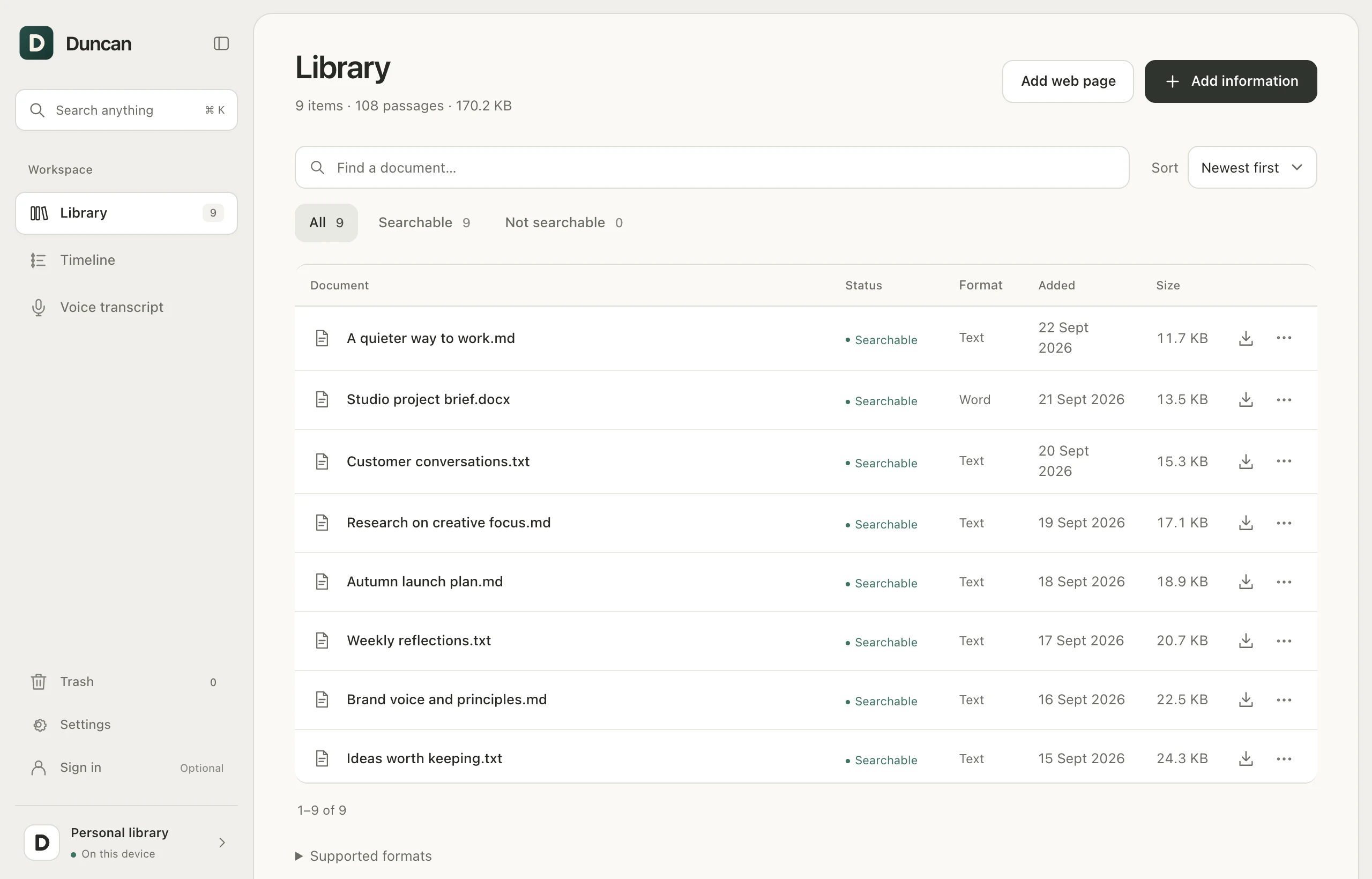
One library. Across the tools you think with.
A little less starting over
Your library lives on your Mac. Keep your original documents, export your library, and decide which connected tools can access it.
Try a new assistant without rebuilding what it knows about your work. Connect compatible AI tools to the same Duncan library.
Bring scattered notes and documents into the conversation. Find relevant passages and give your AI something real to work with.
From files to useful context
The research. The reasoning. That detail from last month. Search by words or meaning, then go straight to the source.
Duncan connects the things you’ve collected to the questions you’re asking now.
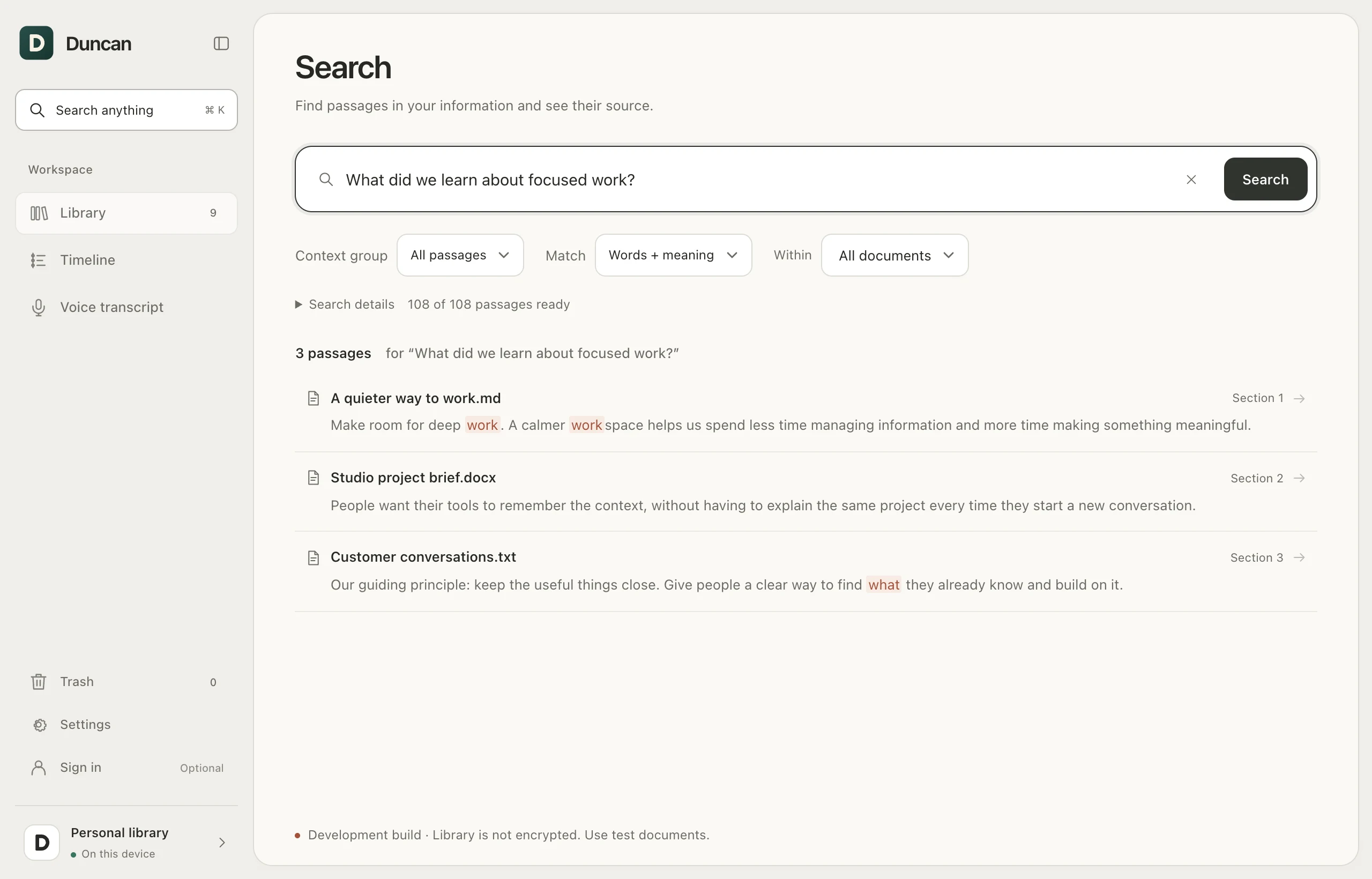
A name you can just ask for
Once connected, ask your AI to look in Duncan. It can search your library and retrieve source passages, right inside your conversation.
Ask Duncan what we learned from the customer interviews, and help me shape the next brief.
Your documents.Make yourself at home
Import documents, add notes, or save a web page. Duncan keeps the originals and makes supported content searchable.
Use Duncan’s connection setup to give a compatible AI tool access to your library or selected context.
Ask your AI to check Duncan. Retrieve relevant evidence and carry that context into your work.
Yes. Duncan stores your library locally on your Mac. When you connect an AI tool, that tool can retrieve the content you allow and may send it to its AI provider. Optional image analysis and transcription also use your configured provider. The library is not encrypted by Duncan.
Duncan works with compatible tools that support local MCP connections, including Claude Desktop, Cursor, and Codex. It doesn’t connect directly to every AI website. Hosted tools such as ChatGPT in a browser need a remote connection that this preview does not provide.
You can export and import your Duncan library and keep your original files. Your context is independent of any single AI conversation or provider. Automatic cloud sync is not included.
Start with PDFs, Word documents, text, Markdown, and web pages. Duncan also supports images and recordings; image analysis and transcription require additional provider setup. Search coverage depends on the file format and processing status.
Duncan is an early preview. Start with copies of non-sensitive documents and keep backups. The initial Mac download is not Apple-notarized; macOS may require approval in Privacy & Security after you try to open it.
Your next conversation starts here
v0.15.5 preview · Apple silicon · macOS 13 or later
Open the disk image and drag Duncan into Applications.
Unsigned preview. See the release notes and installation steps.